
Photoshop Space Tutorial
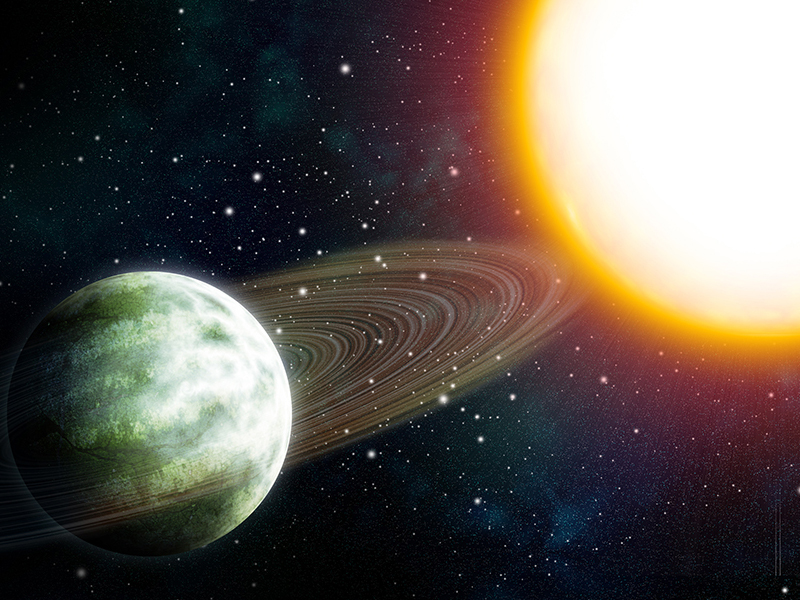
Comprehensive digital art tutorial teaching users how to create a space scene featuring a planet and star using Adobe Photoshop.
Step 1
Make a new Photoshop document with the following dimensions: height: 2000 px, width: 3000px, resolution: 300 dpi, Color Mode: RGB (Image > Mode > RGB)

Step 2
Your ‘Background’ layer will probably be white. Double-click it and press Command + I to invert the color. Make a new layer and fill it with white. Set the blending mode to ‘Dissolve’, and the Opacity to ‘1%’. Press Command+E to merge the layers. Filter > Blur > Gaussian Blur radius: ~0.5. Repeat this step one more time, and set the blending mode to ‘Screen’. Press Command+T and hold down Shift and Option to increase the size of this layer 2x to vary the size of your stars. With this same layer selected, go to Image > Adjustments > Brightness/Contrast. Brightness: -44, Contrast: 100 (or to your liking). Select all of your black star layers and put into a group, label this group ‘Background Stars’. OR if you are feeling very bold today, select them and press Command + E to merge them all together. Lock this group or layer by clicking on it in the layers panel and then clicking the lock symbol.

Step 3
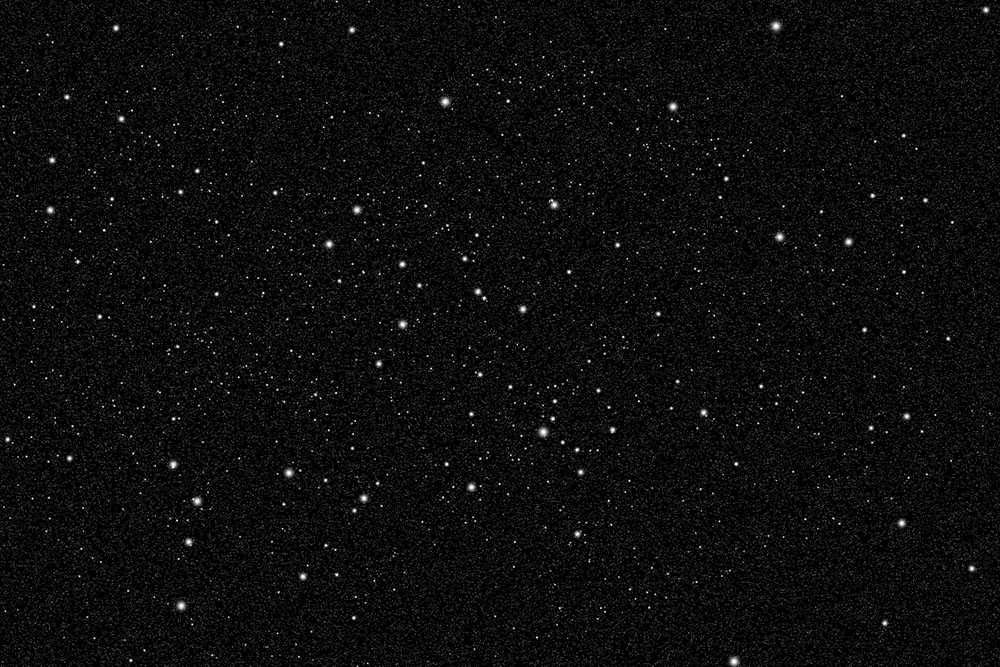
Make a new layer. Go to your brushes and select the ‘Soft Round Pressure Size’ brush at 25px. Open your brushes palette. In Brush Tip Shape, set spacing all the way up to 1000%. Check ‘Shape Dynamics’ and set the ‘Size Jitter’ to 100%. Check ‘Scattering’ and click on it to access the options, set ‘Scatter’ to 1000%, and check the ‘Both axes’ box. If you want, you can save this brush for future use by pressing the new brush icon in the bottom right corner. Close out of the dialogue, make sure white is your foreground color and play around with the brush. It should be depositing stars everywhere. Make your brush smaller and make more stars for variation.
Step 4
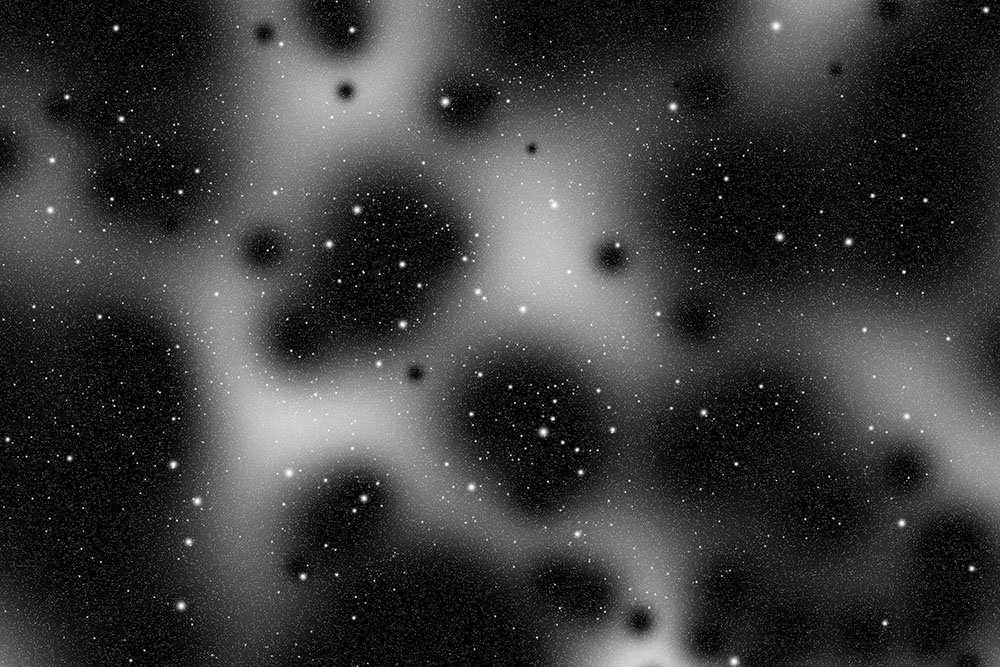
Make a new layer, fill it with white. Erase it with a very large soft edged scatter eraser (scroll down to the end of your brush list to select your scatter brush). Set the opacity to 25%.
Step 5
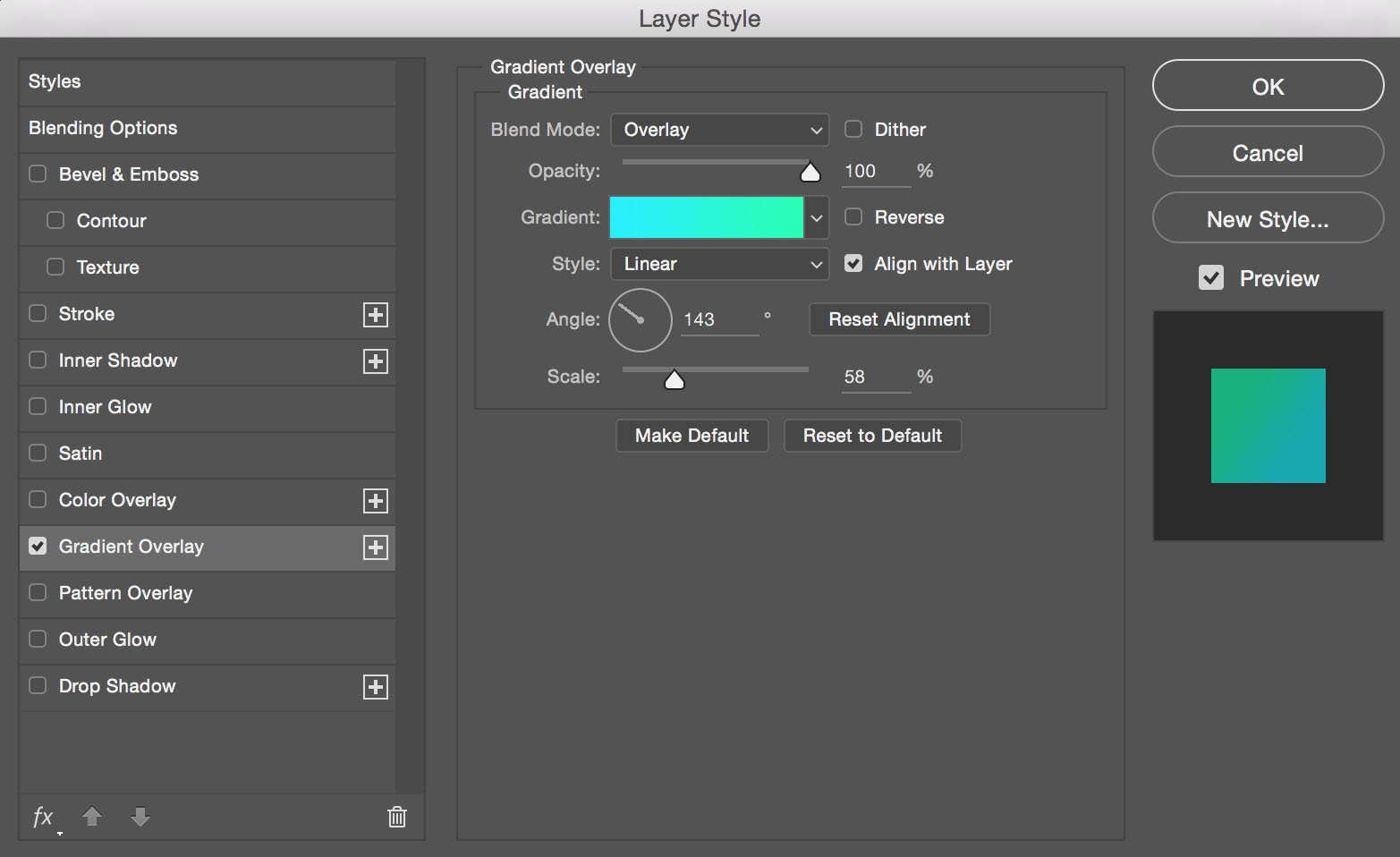
Make a new layer. Make sure your foreground and background colors are black and white. Go to Filter > Render > Clouds. Then go to Filter > Render > Difference Clouds. Double click on the layer to bring up the Layer Style palette. Add a gradient overlay to these specifications.
Step 6
Set the opacity to 76% and the blending mode to ‘Overlay’.
Step 7
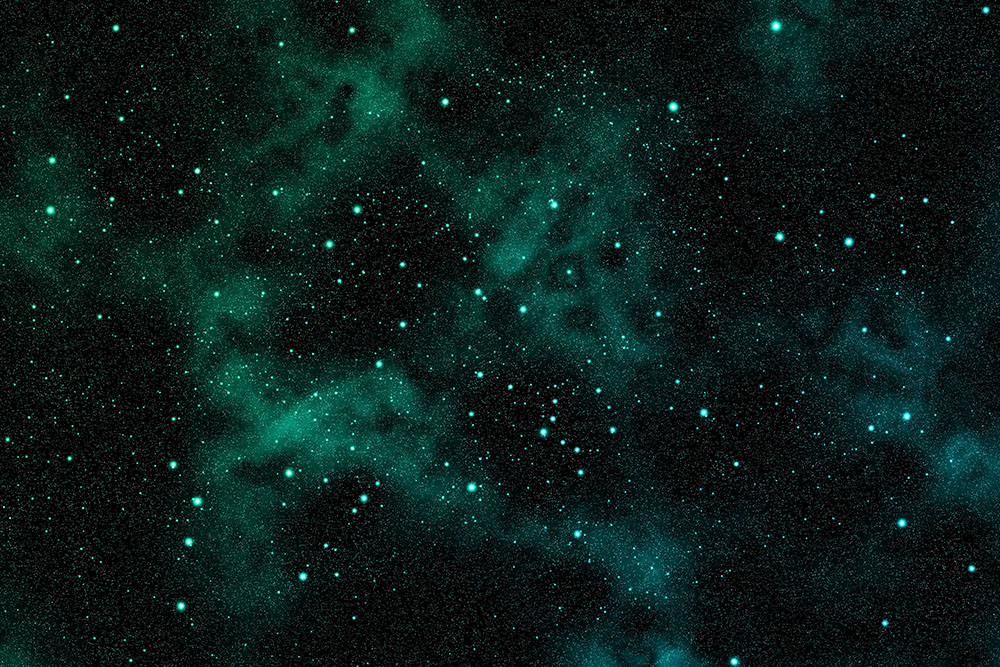
Make a new layer. Filter > Render > Clouds. Then make another new layer, Filter > Render > Clouds and then Filter > Render > Difference Clouds. Make a new layer and fill it with a nice deep blue. Erase into this layer with the soft round scatter eraser. Set the Opacity to 40%, and the blending mode to ‘Screen’.
Step 8
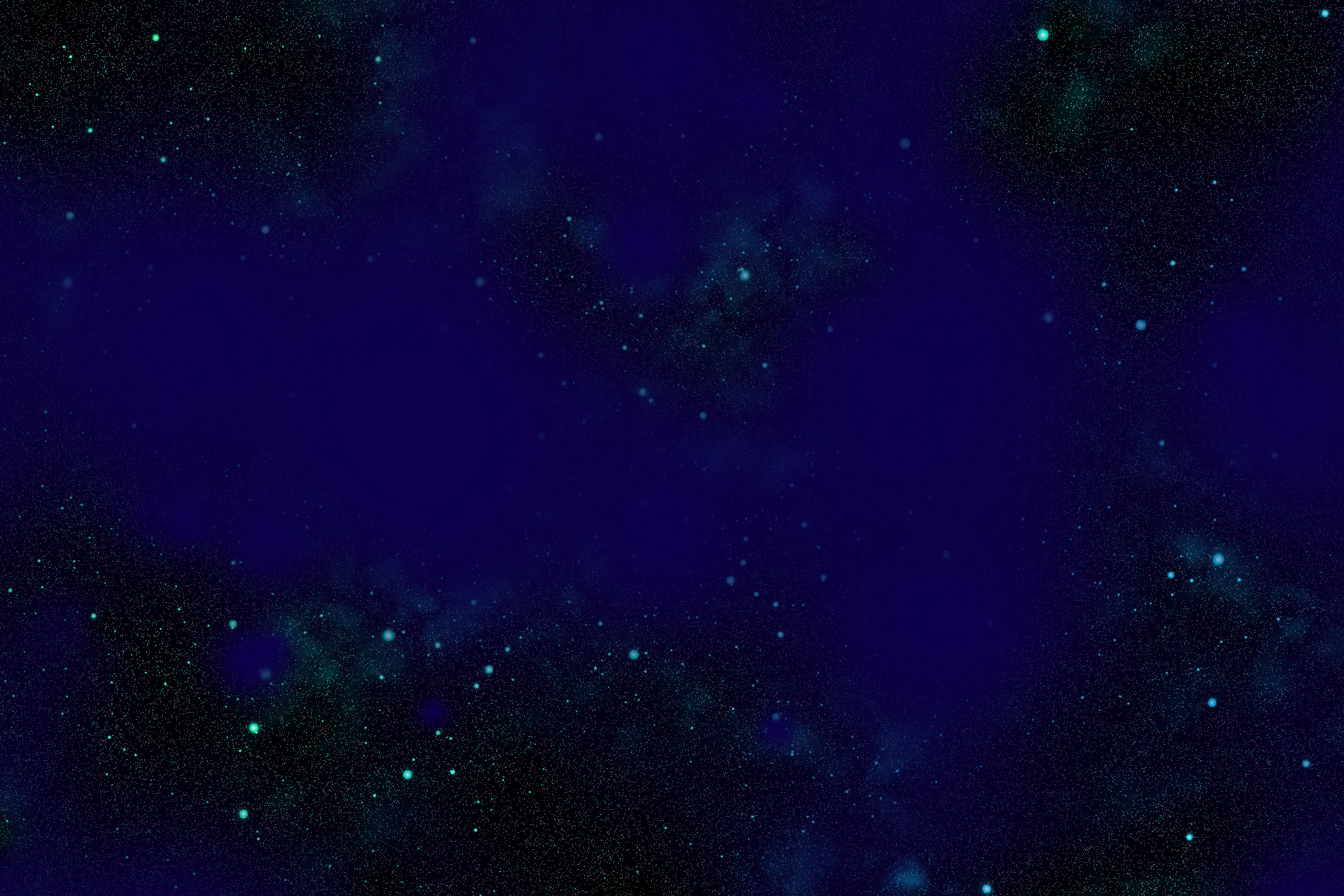
Make a new layer. Fill it with a nice bright green. Erase into it with a soft-edged scatter brush eraser. Make a new layer and fill it with a nice deep blue. Set the Opacity to 20%, and the blending mode to ‘Screen’.
Step 9
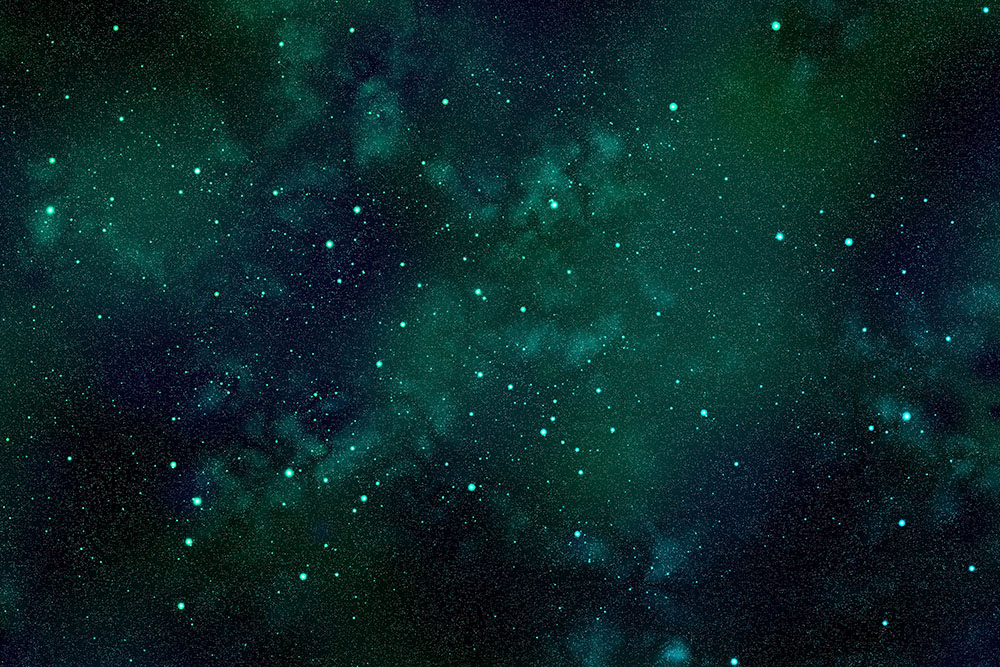
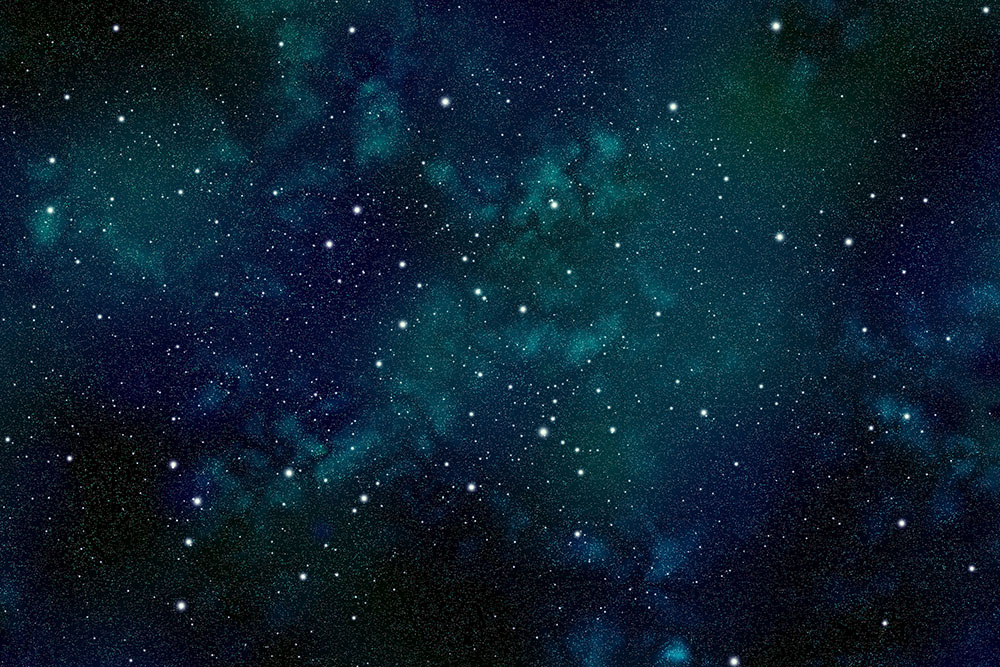
Click on the adjustment layer symbol (looks like a black and white cookie). Select ‘Color Balance’. Play around with these settings to get the color the way you like it. Here I’ve boosted cyan, magenta, and blue in the midtones. I’ve also moved my stars layer up above the nebula layers so that it is no longer affected by the color gradient, and they are white again.
Step 10
Make a new layer. Use a large black soft edged brush to block out some of your color and make your space darker, set the Opacity to 60%. Move the ‘stars’ layer to the top, and make another new layer on top of this. Go in with your black soft edged brush and block out some of the stars. Select all of these nebula layers, and click on the folder icon to put them in a folder, label it ‘nebula’.
Intermission: Choose Your Texture
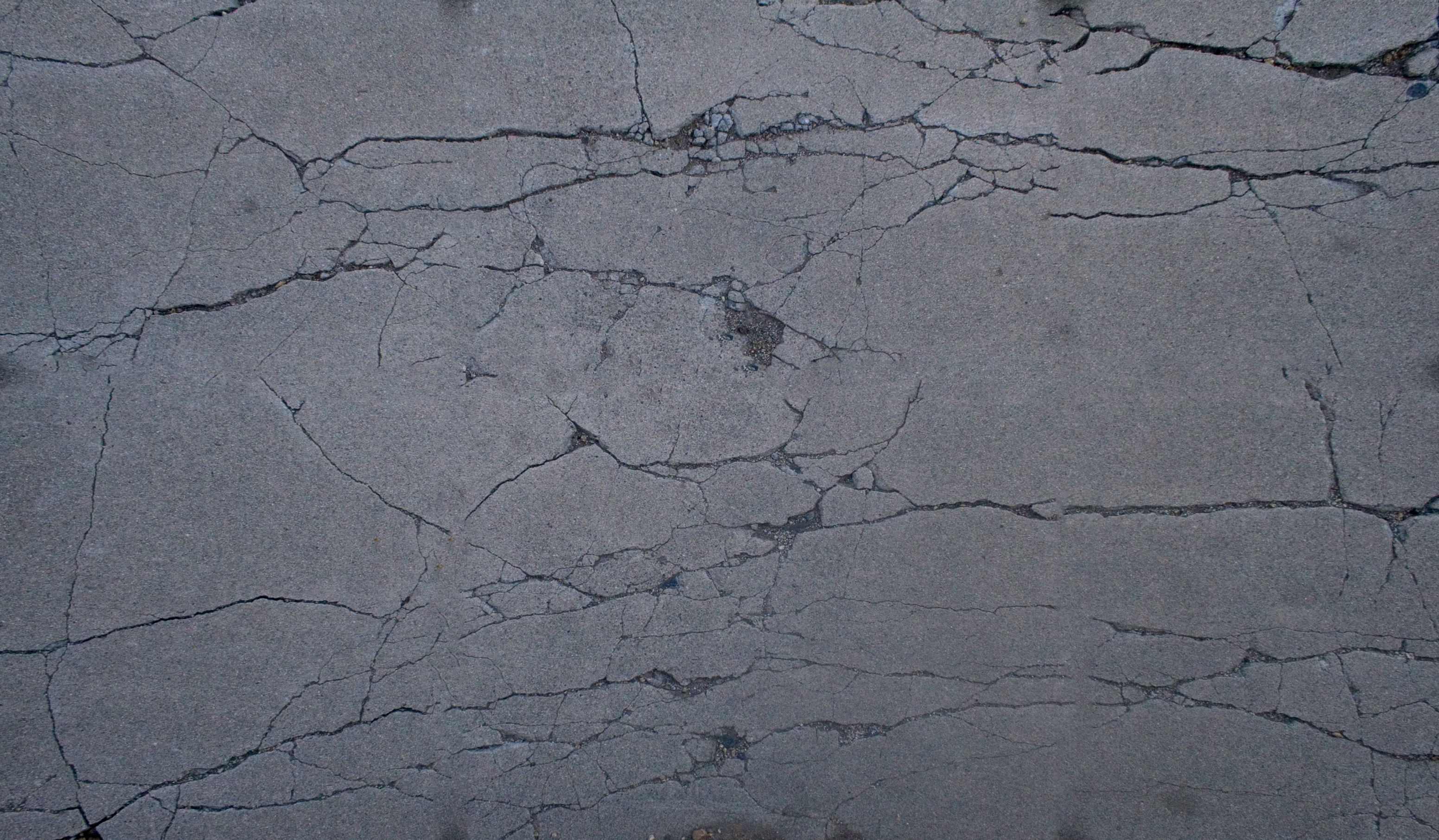
Choose one of these textures. We are going to make a planet. Drag the image directly into Photoshop or Control + click and select ‘Open Image in New Tab’ and drag into Photoshop. You may also choose your own texture, and feel free to get creative, just make sure you start with a high resolution image. Lost and Taken has some really great textures to choose from.
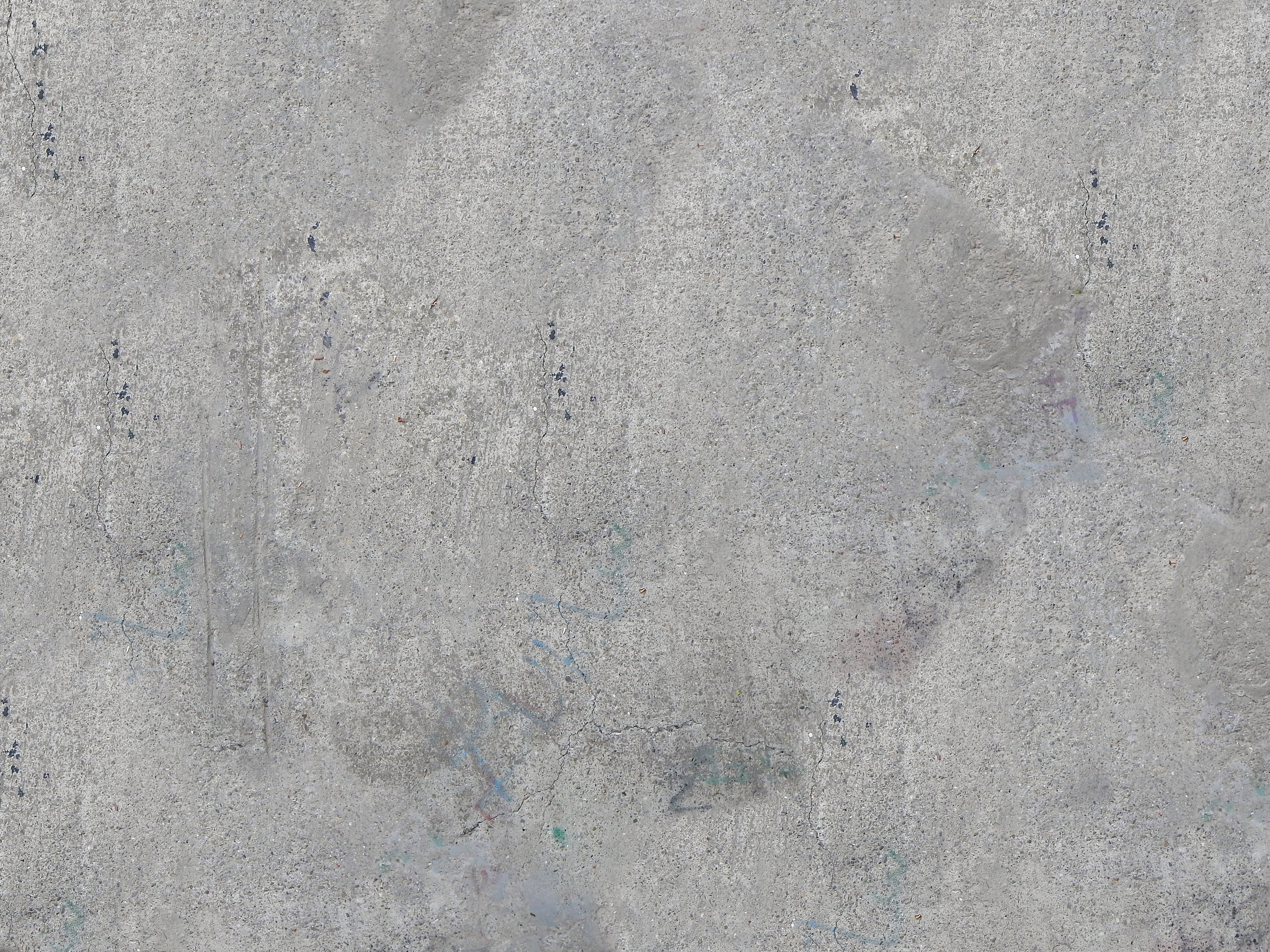
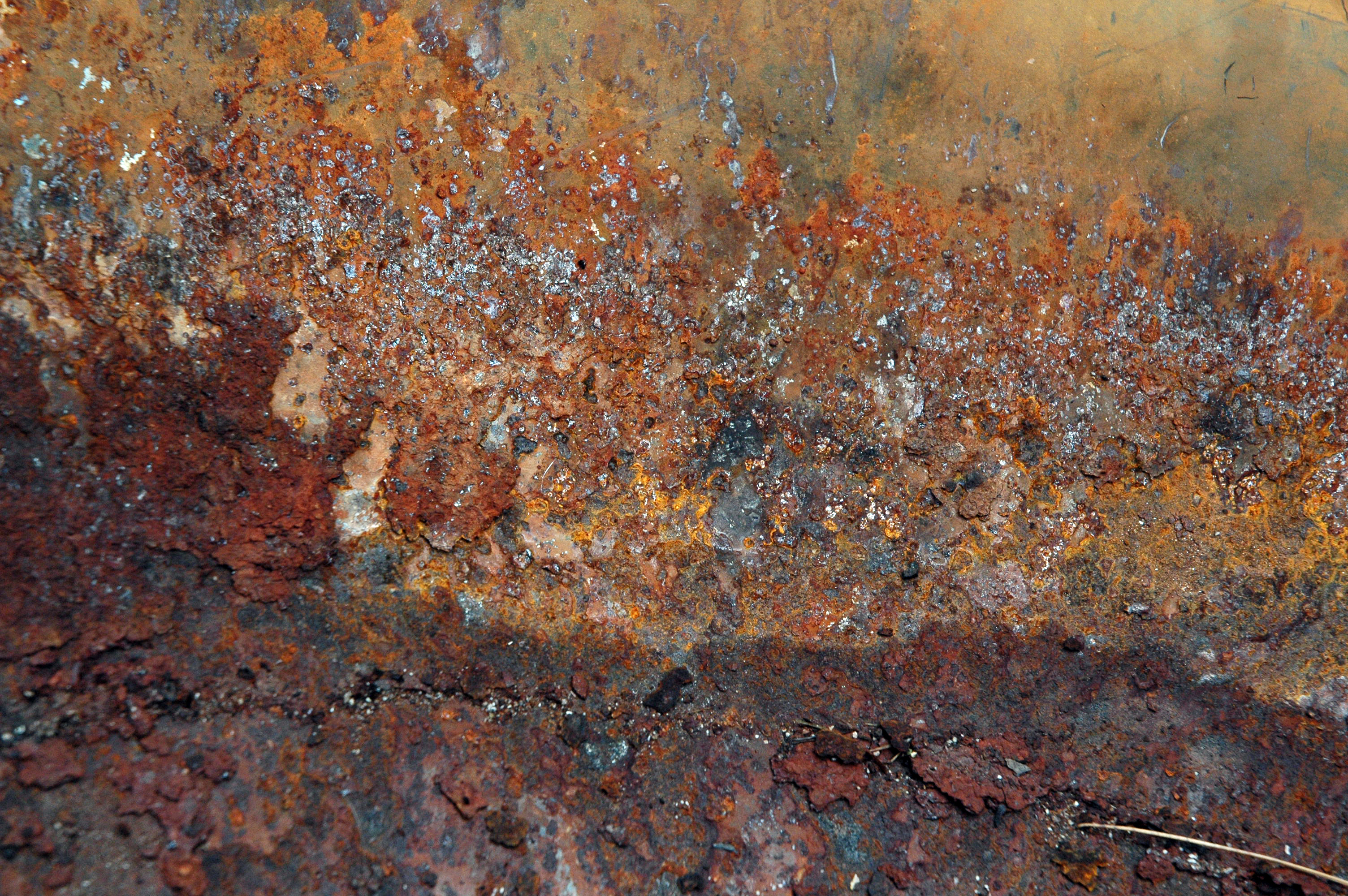
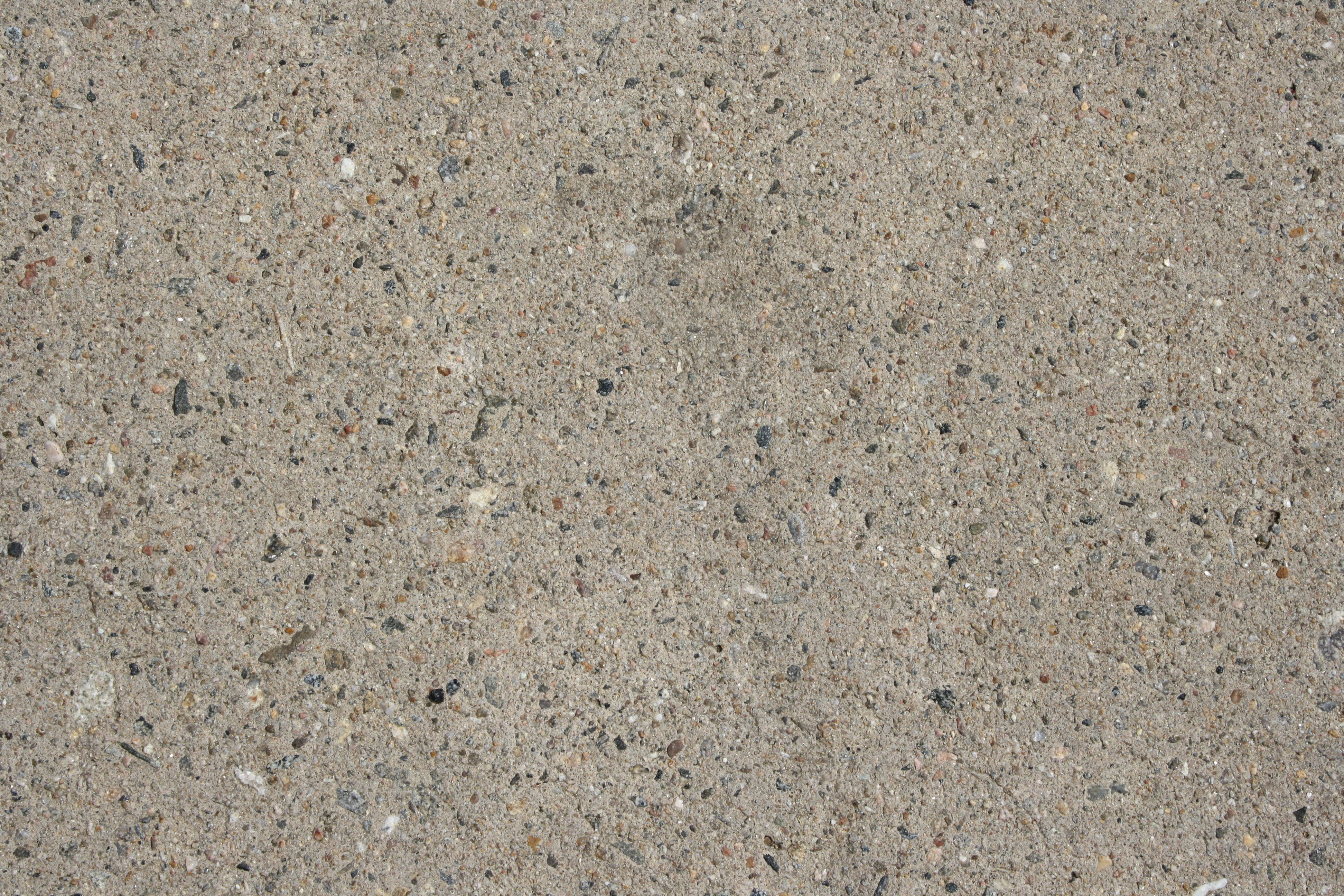
Step 11
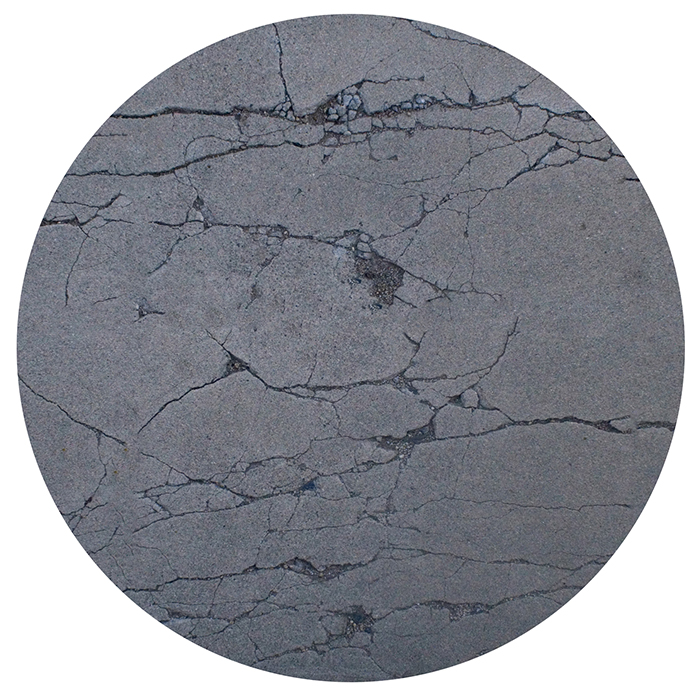
Crop your image to a square. Double-click your Background layer to unlock it. With the elliptical marquee tool, click as close to the center of the image as you can and hold down Shift + Option to drag the circle out almost to the edge of the square. Click Command + Shift + I to select the inverse. Press delete to delete everything outside of the circle.
Step 12
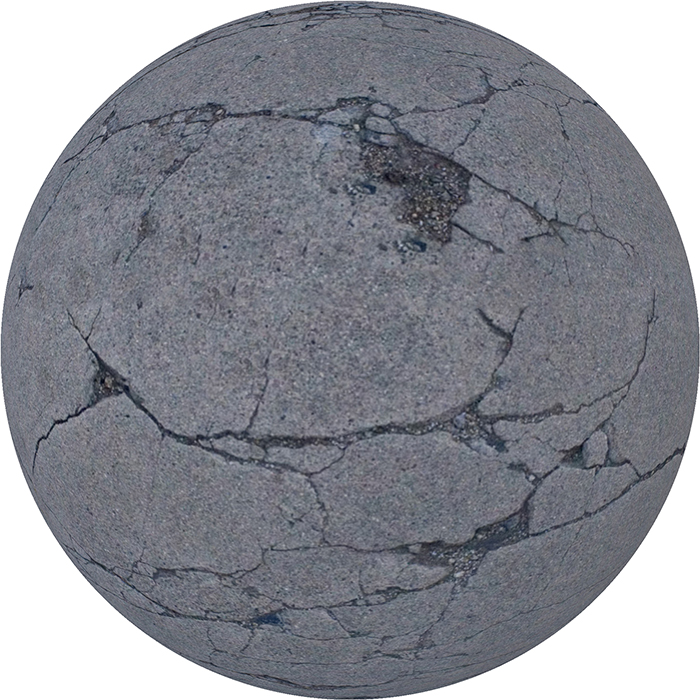
Press Command + D to deselect. Go to Filter > Distort > Spherize. You may have to do this 2-3 times to get it the way you want.
Step 13
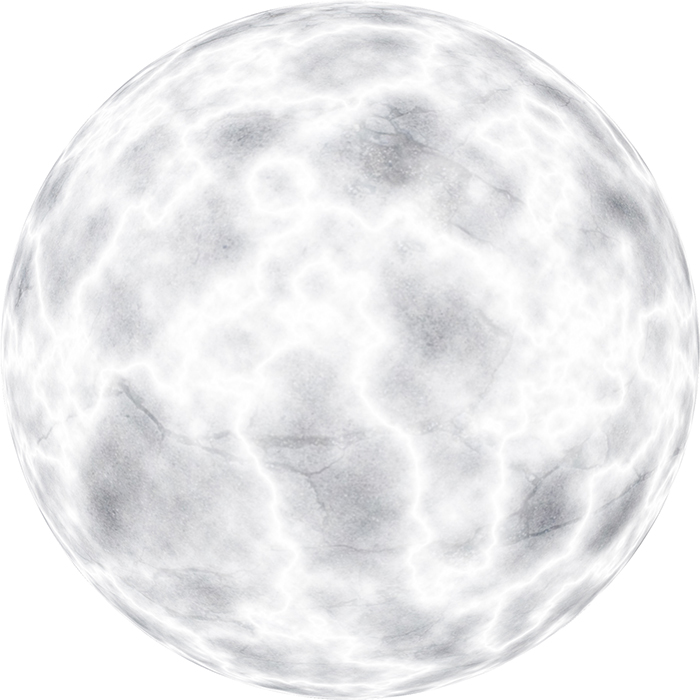
Make a new layer. Go to Filter > Render > Clouds. Go to Filter > Render > Difference Clouds. Press Command + I to invert the layer. Go to Filter > Distort > Spherize (you may need to do this twice). Hold down the option key and hover your cursor between the two layers. Click to link the top layer to the lower layer (this step can be a little tricky, but this is probably my favorite Photoshop trick). Set the cloud layer to ‘Screen’ and drag both of these layers into your original Photoshop file.
Step 14
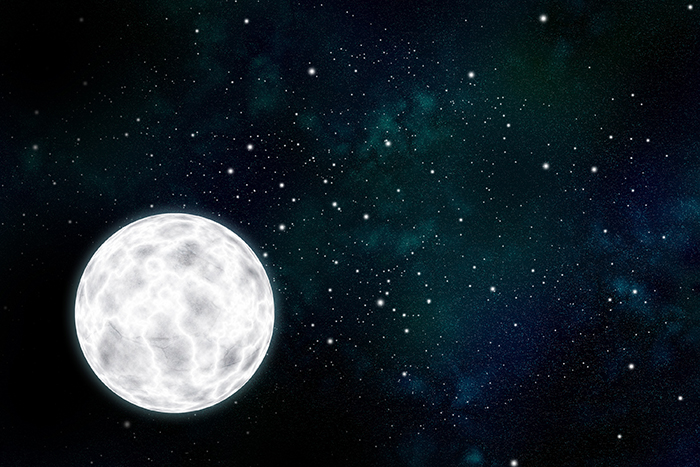
Double-click the planet layer to bring up layer styles. Click on ‘Outer Glow’ and add a blue outer glow at 8% Opacity, and set the blending mode to ‘Screen’.
Step 15
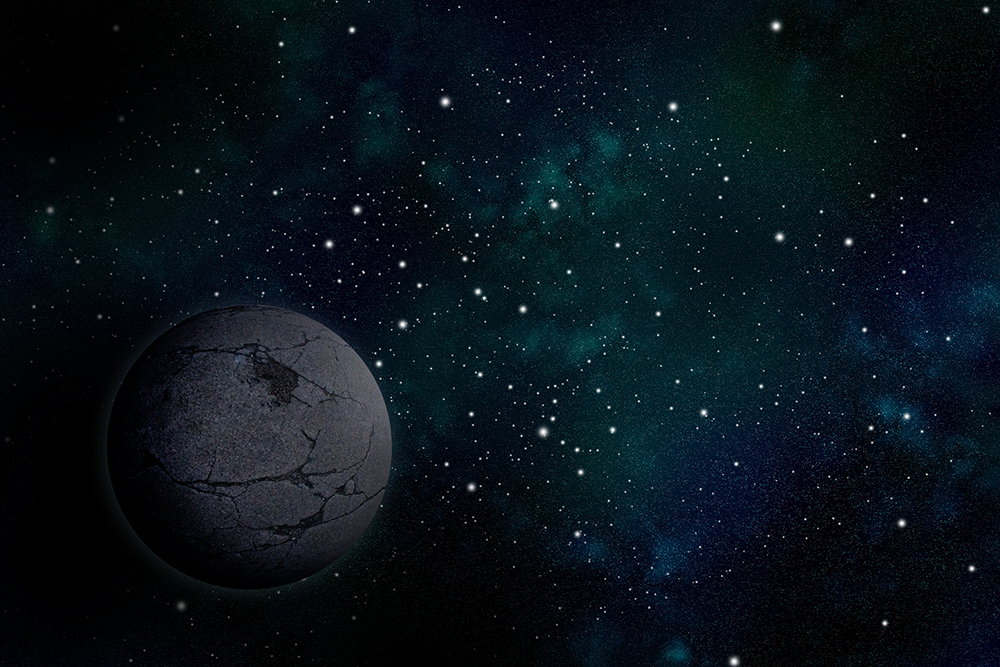
Hide your cloud layer and duplicate your planet layer. Set the new layer to ‘Multiply’ and use the burn tool to create a shadow. Link this layer to the original planet layer (directly below) by holding down Option and clicking between the layers. It doesn’t matter for this layer, but we will link most of the other planet layers above it.
Step 16
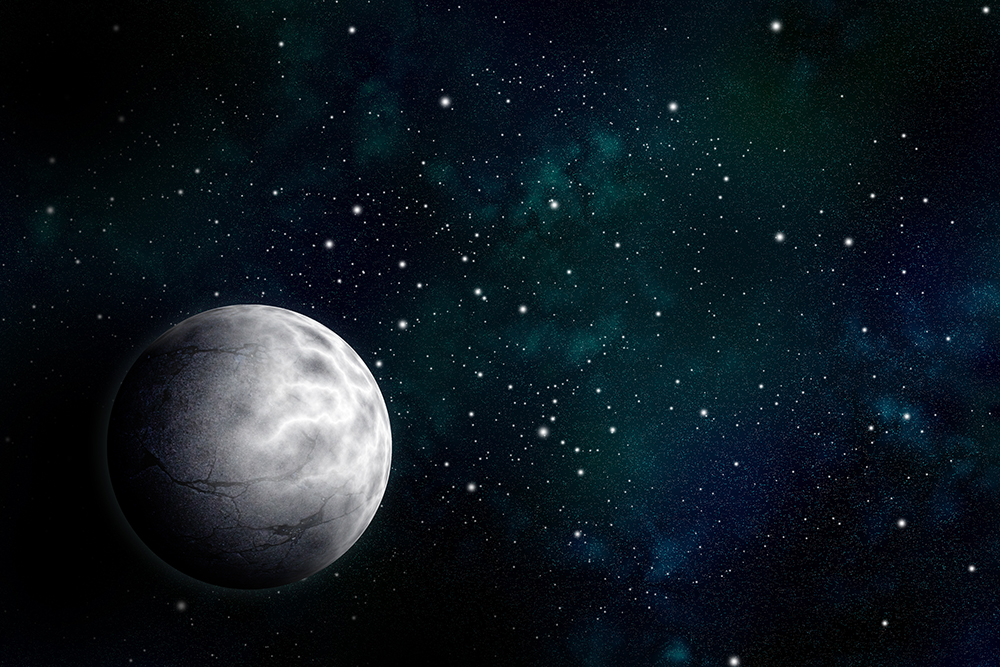
Turn the cloud layer back on, and mask out the shaded side of the planet.
Step 17
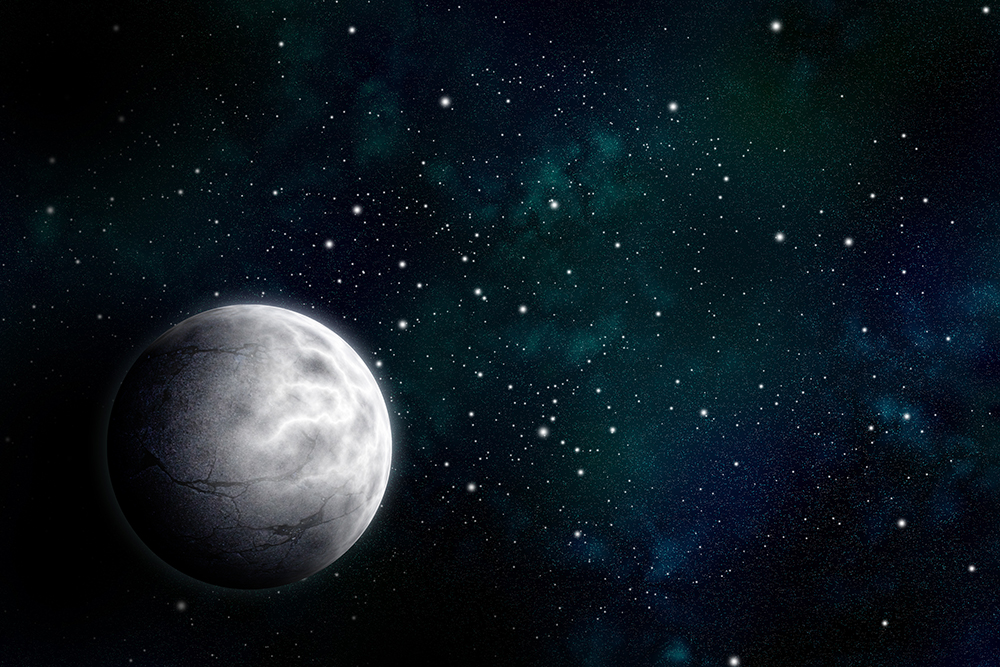
Copy the planet layer again. Using a large hard-edged eraser, erase all but a small sliver of the planet. Go to Filter > Blur > Gaussian Blur. Repeat this step a few more times until you have the glow you want. These layers will not be linked to the planet layer, so move them to the very top of the layer hierarchy.
Step 18
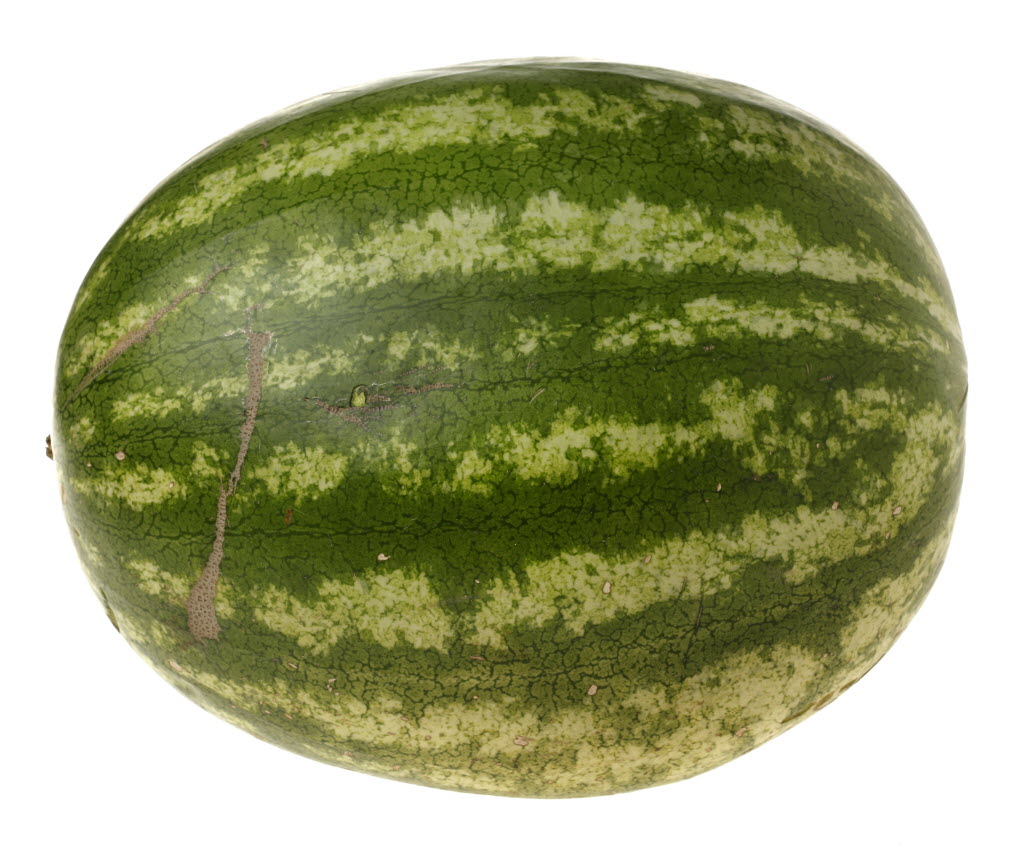
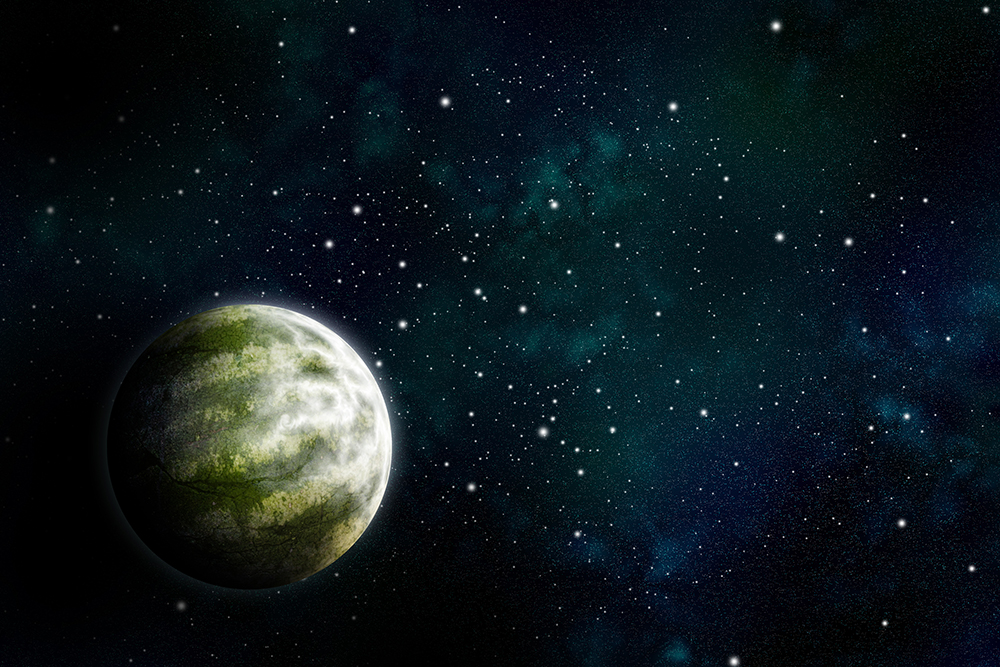
I think this planet needs more/different texture and I’ve always thought watermelons look spacey so let’s add a watermelon texture. Drag this image into your Photoshop file, and place it directly above your clouds layer. Set the blending mode to ‘Overlay’. Layer textures to create your own unique planet.
Step 19
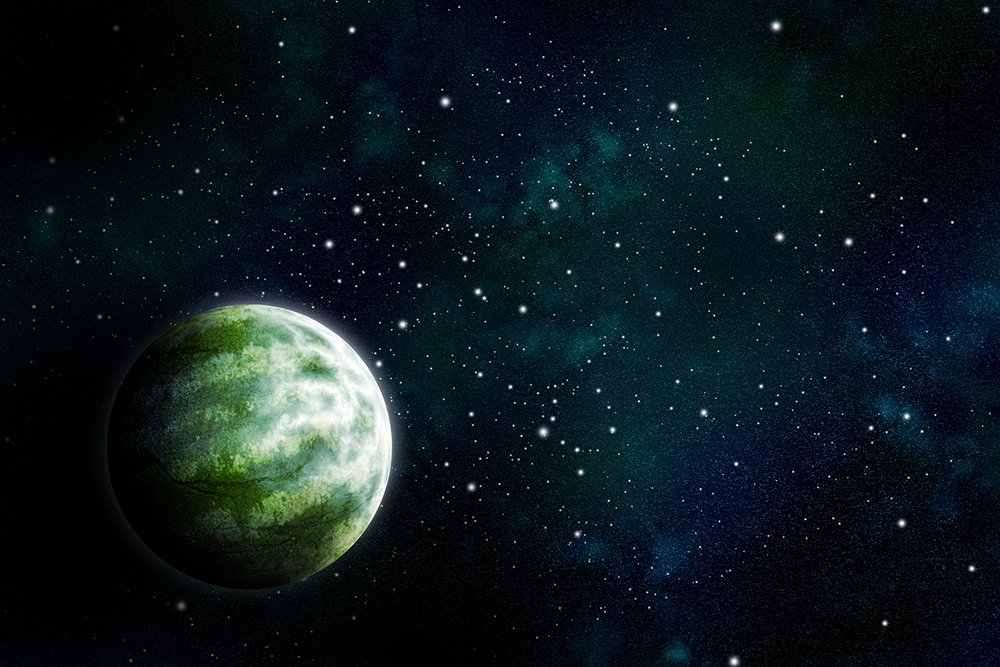
Make a new layer (also linked to the planet and above everything else). Set this layer to ‘Overlay’ (or even ‘Multiply’ for a more subtle effect) and color away—this is your chance to adjust the color of your planet. You may want to adjust your outer glow to match this layer by double-clicking the original planet to bring up the layer styles.
Step 20
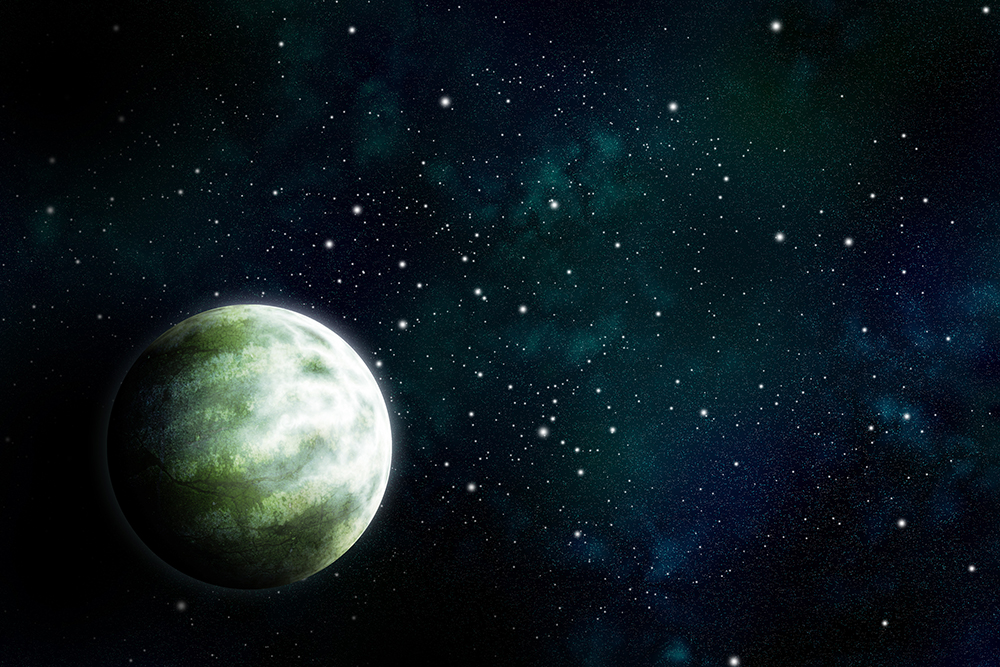
Duplicate the ‘clouds’ layer and bring it to the top of the rest of the layers. Use the Smudge tool on the cloud layer to make them a bit more realistic. Size: 10px, Strength: 42%.
Step 21
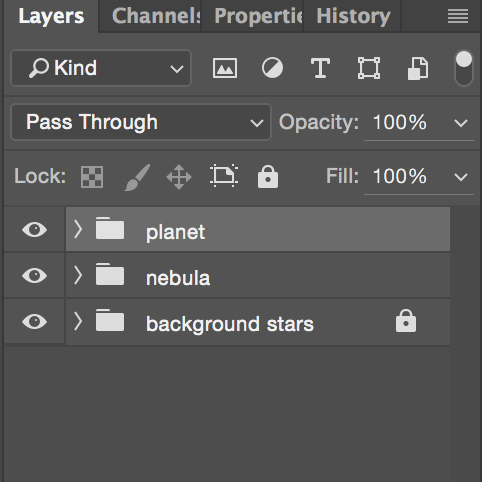
I’m pretty happy with this planet so I am going to put all of these layers into a folder. Don’t worry about ‘Pass Through’. At this point I am going to temporarily hide my planet layer so I can focus on the star.
Intermission: Now Let’s Make the Star!
Step 22
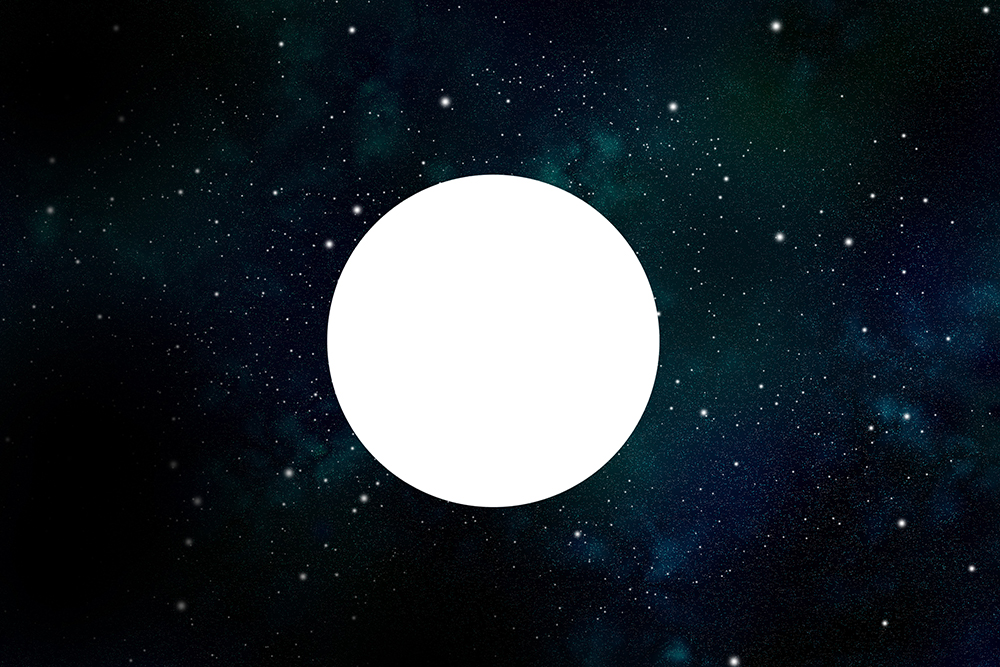
Make a new layer. With a very large white hard edged brush, click once to make a circle as close to the center of your image as you can.
Step 23
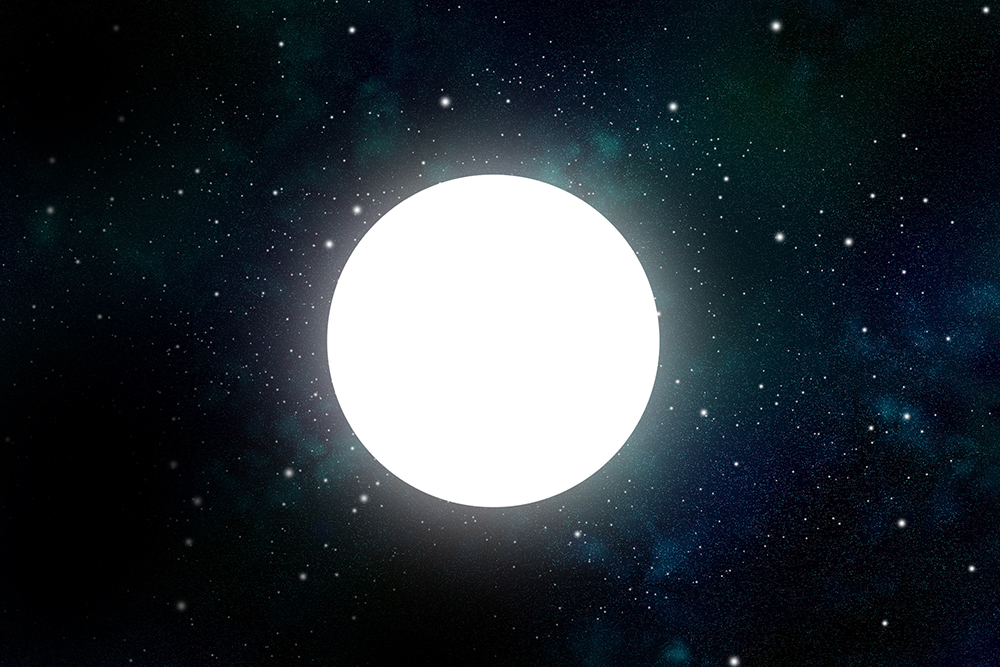
Duplicate your star layer. Go to Filter > Blur > Gaussian Blur.
Step 24
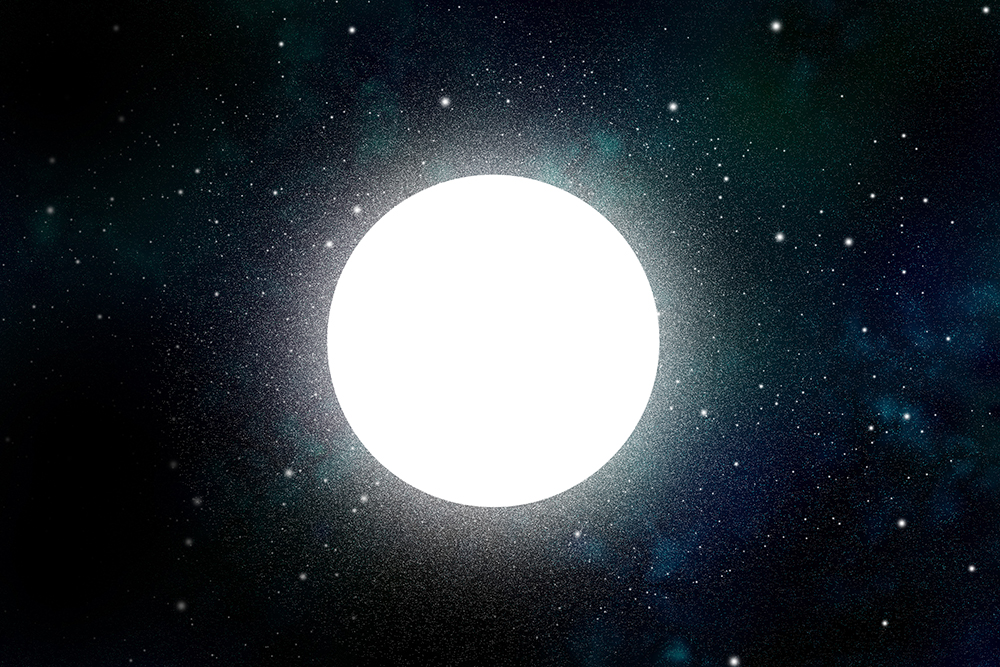
Make a new layer. Switch to a soft edged brush that is the same size as your star. Set the brush blending mode to ‘Dissolve’ (this drop-down menu is directly to the right of your brush in the top bar). Click once.
Step 25
Go to Filter > Blur > Radial Blur. Select ‘Zoom’, ‘Best’ and crank up the Amount to 100.
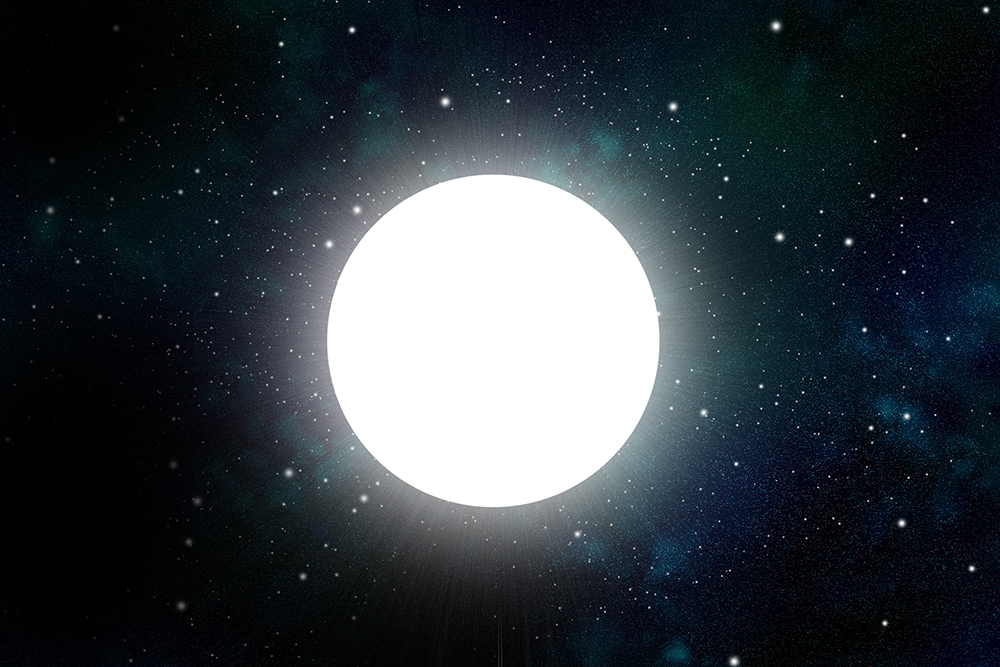
Step 26
Order your layers like this: top layer: Star, new layer filled with bright red, Middle: Gaussian Blur, lowest: Radial Blur. Link the red layer to the Gaussian Blur layer by holding down Option.
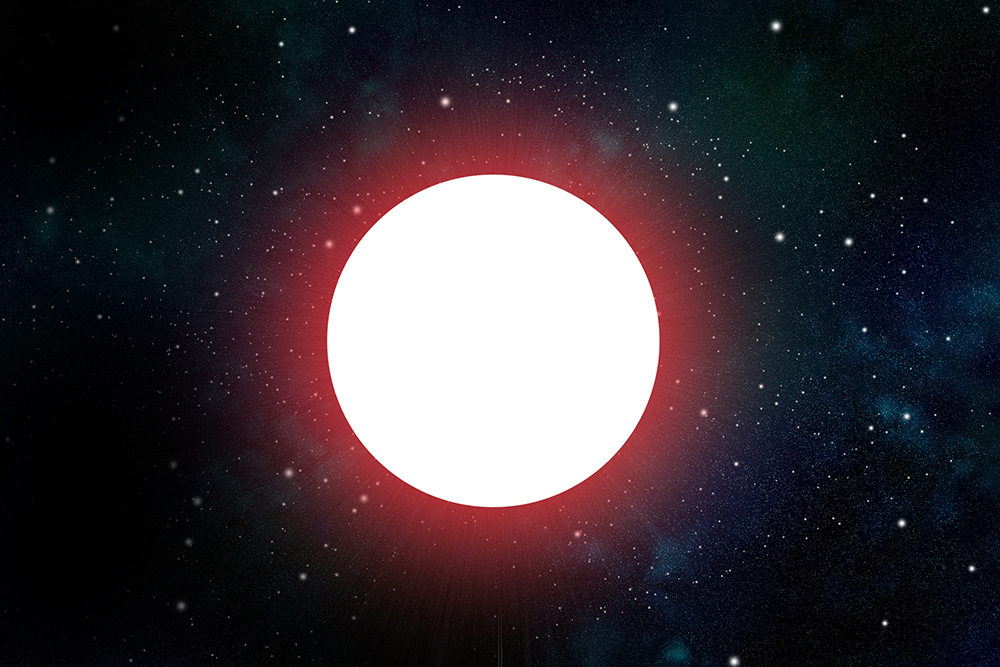
Step 27
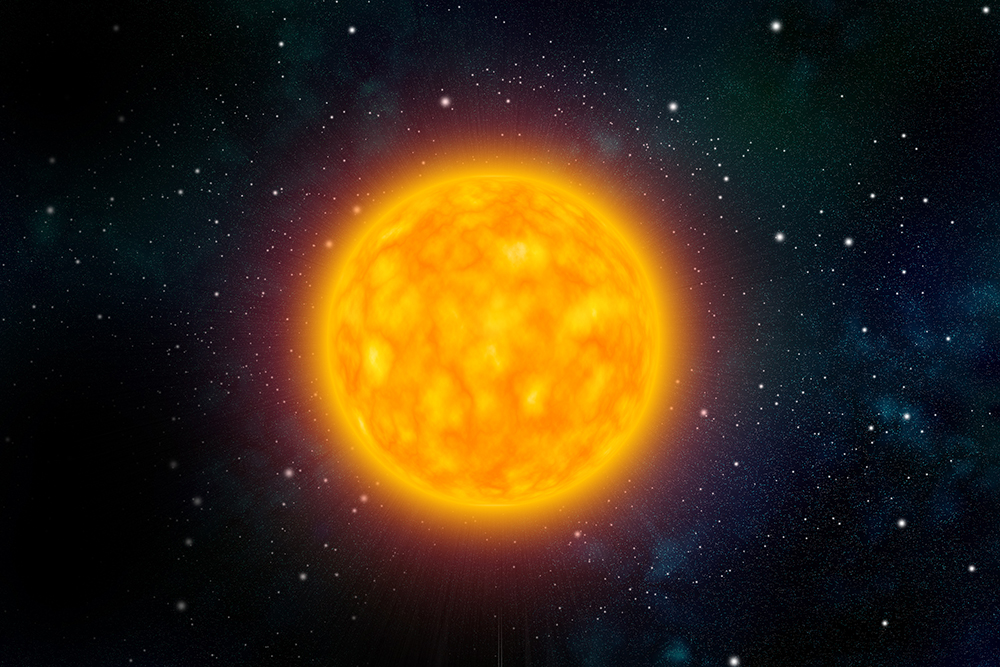
On your ‘star layer’ (with the hard edge) double click to bring up layer styles. Add an orange/tangerine Outer Glow at 100% Opacity and a size of 180px. Add an inner glow in the same color also at 100% Opacity and a size of 70px.
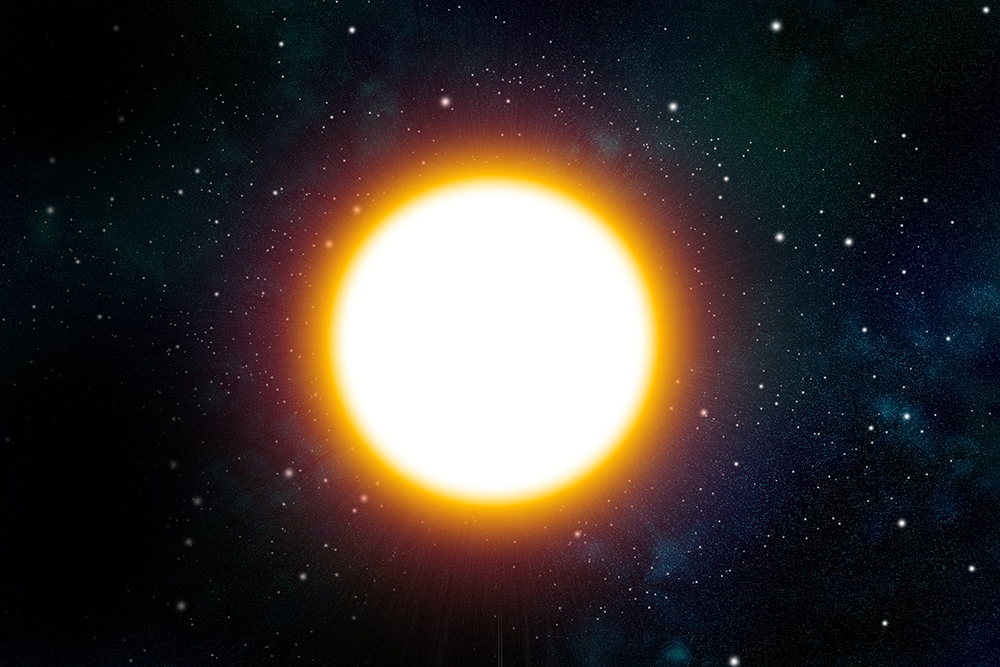
Step 28
Make a new layer. Make sure black and white are your foreground and background colors. Filter > Render > Clouds. Filter > Render > Difference Clouds. Filter > Distort > Spherize. Filter > Distort > Spherize (again). Now take this layer and squish it into a circle the same size and directly above your star layer. Link it to the star layer by holding down Option. Set the blending mode to ‘Multiply’.
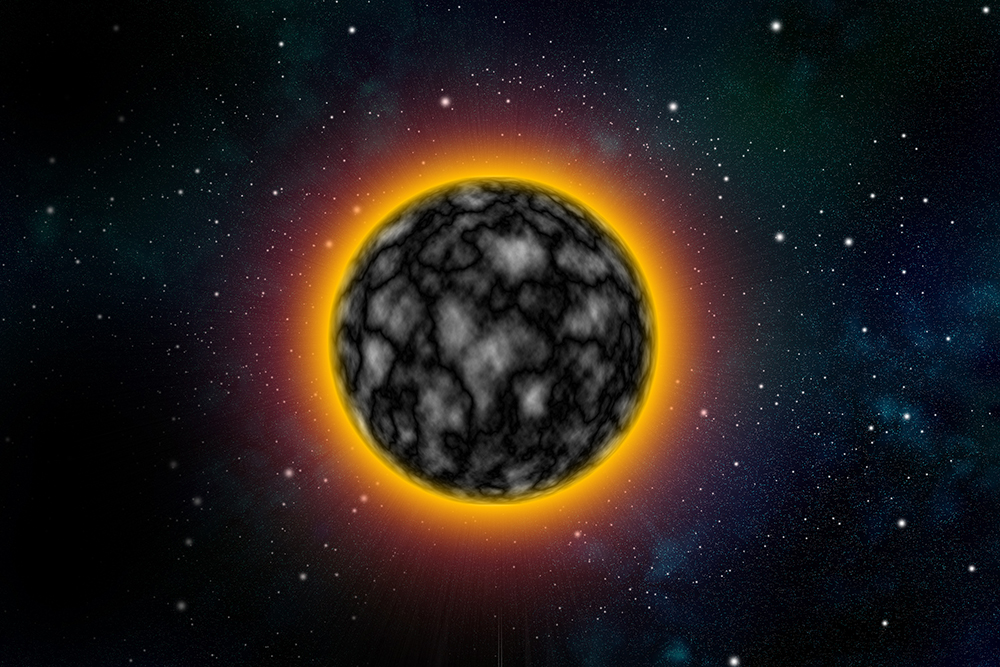
Step 29
Add a Hue/Saturation adjustment layer. Click ‘Colorize’. Bump up the Saturation to 100, and Lightness to +50. Move the ‘Hue’ slider around until it is the color you want. Select the clouds layer and the Hue/Saturation layer and press Command + E to merge. Copy this layer and set it to ‘Overlay’. Repeat the steps above to change the Hue/Saturation and merge. Rotate it by 90 degrees for variation in your star texture. Make sure this layer is linked to the ones below it.
Step 30
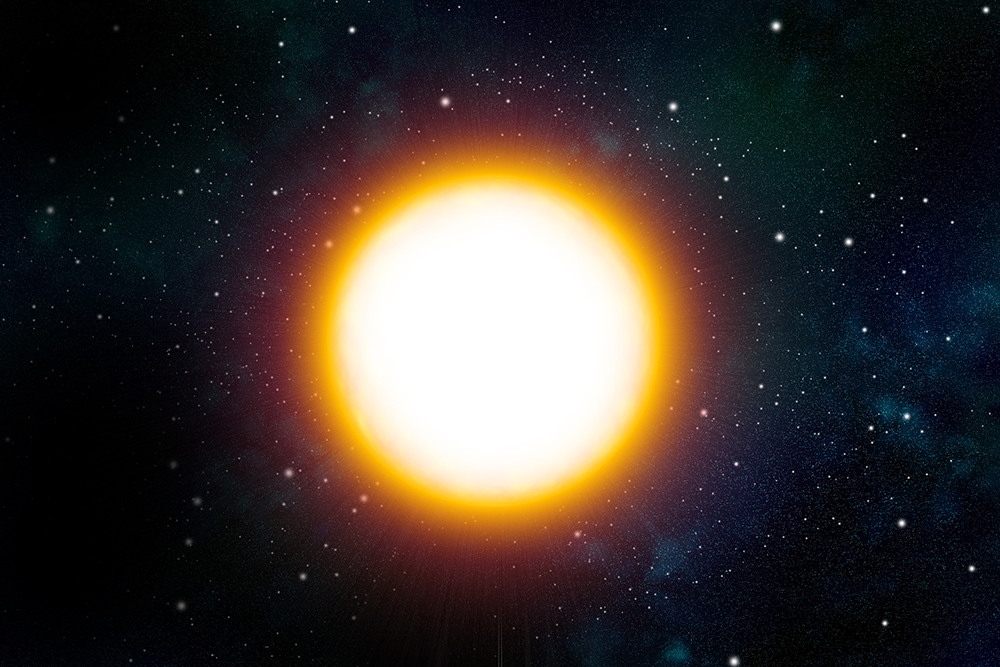
Make a new layer and set it to ‘Screen’. Paint a lot of white into this layer to make your star glow.
Step 31
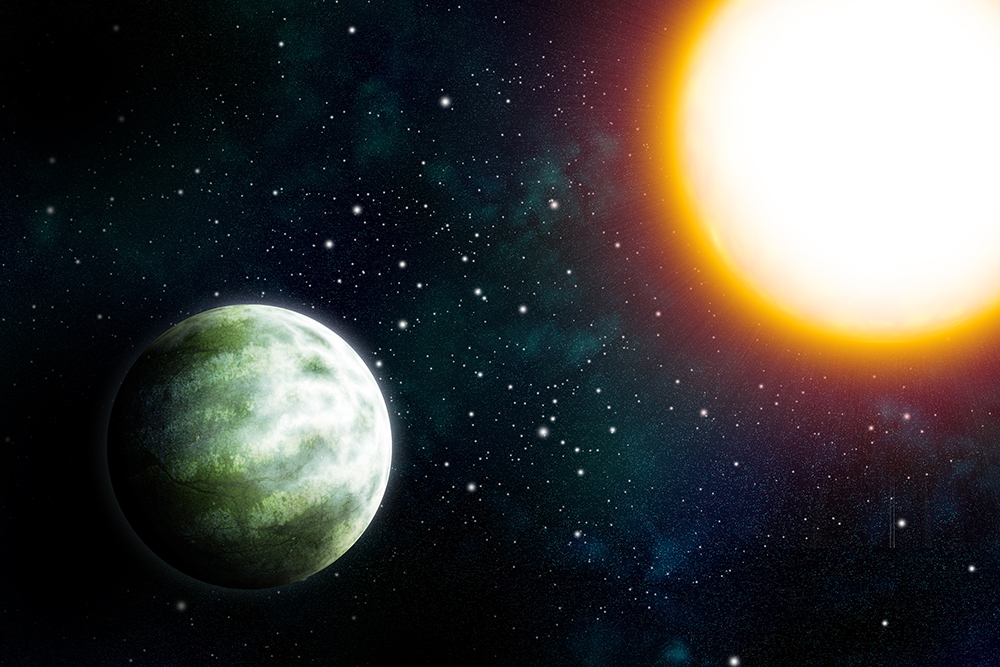
Turn your planet back on and work with the composition.
Intermission: Adding Rings
Step 32
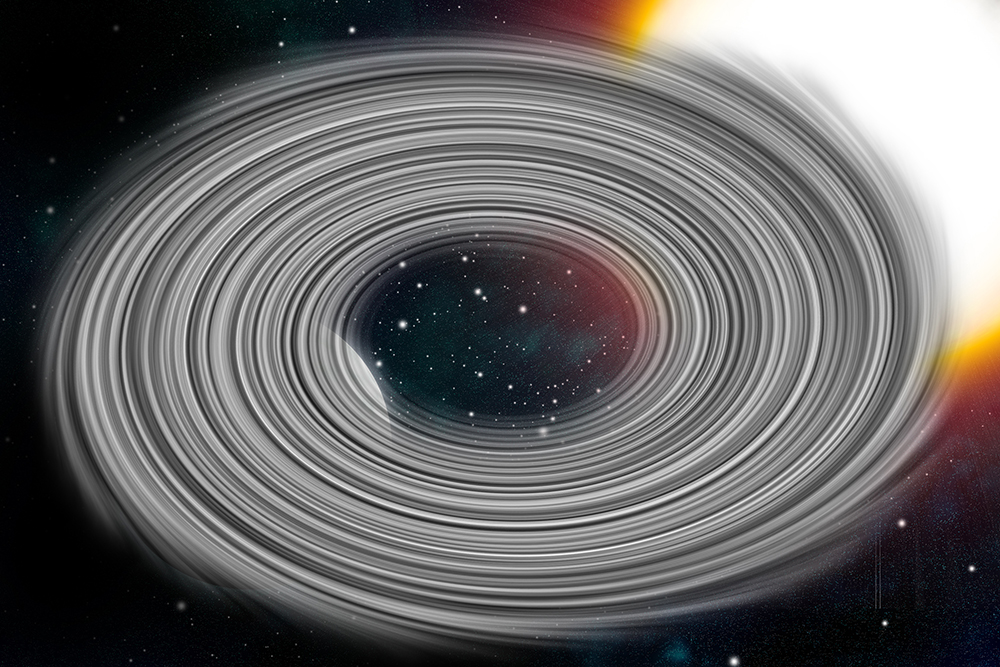
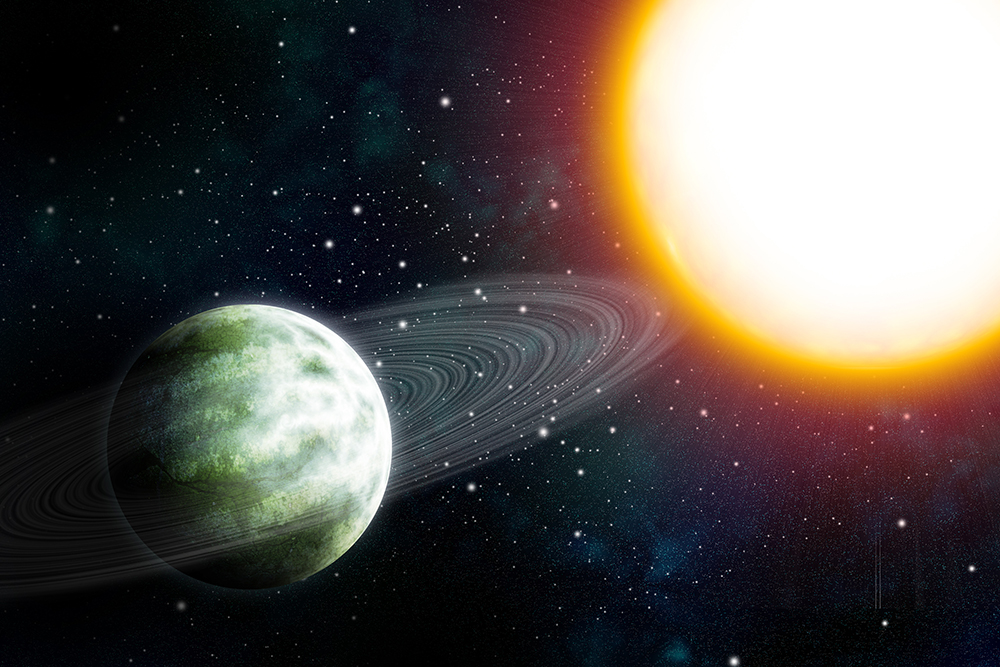
Make sure black and white are your foreground/background colors. Filter > Render > Clouds. Filter > Distort > Twirl and set the angle all the way to 999. Repeat the Twirl.
Step 33
Set the blending mode to ‘Screen’ and squish the twirl so it looks like a ring. Mask out the part that goes behind the planet. Bring down the Opacity and Fill for more subtle rings.
Step 34
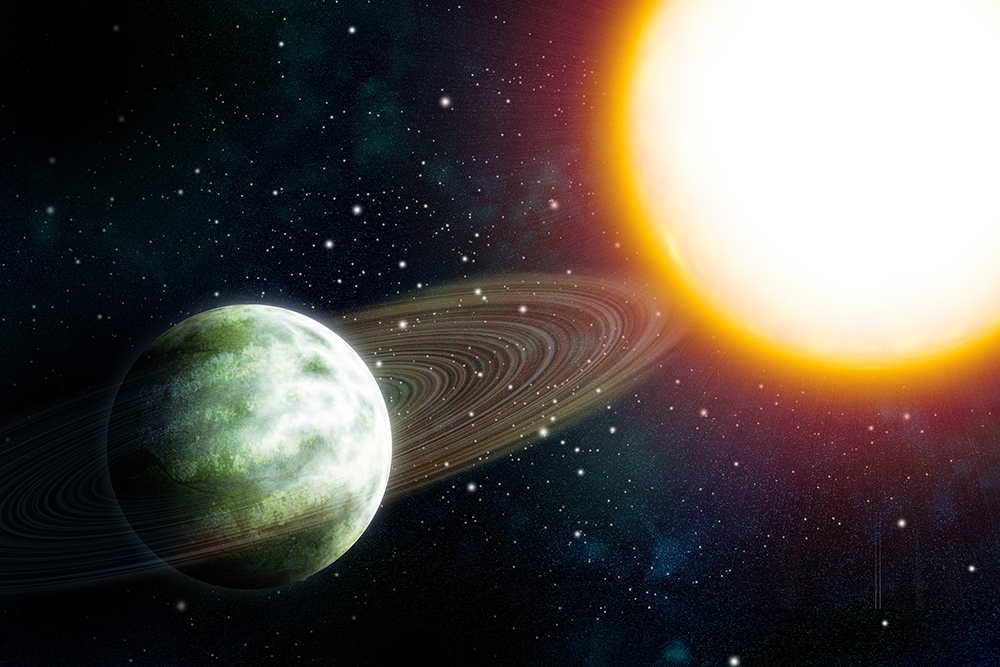
Make a new layer and link it to the rings layer. Set this layer to overlay and use it to color your rings.
Step 35
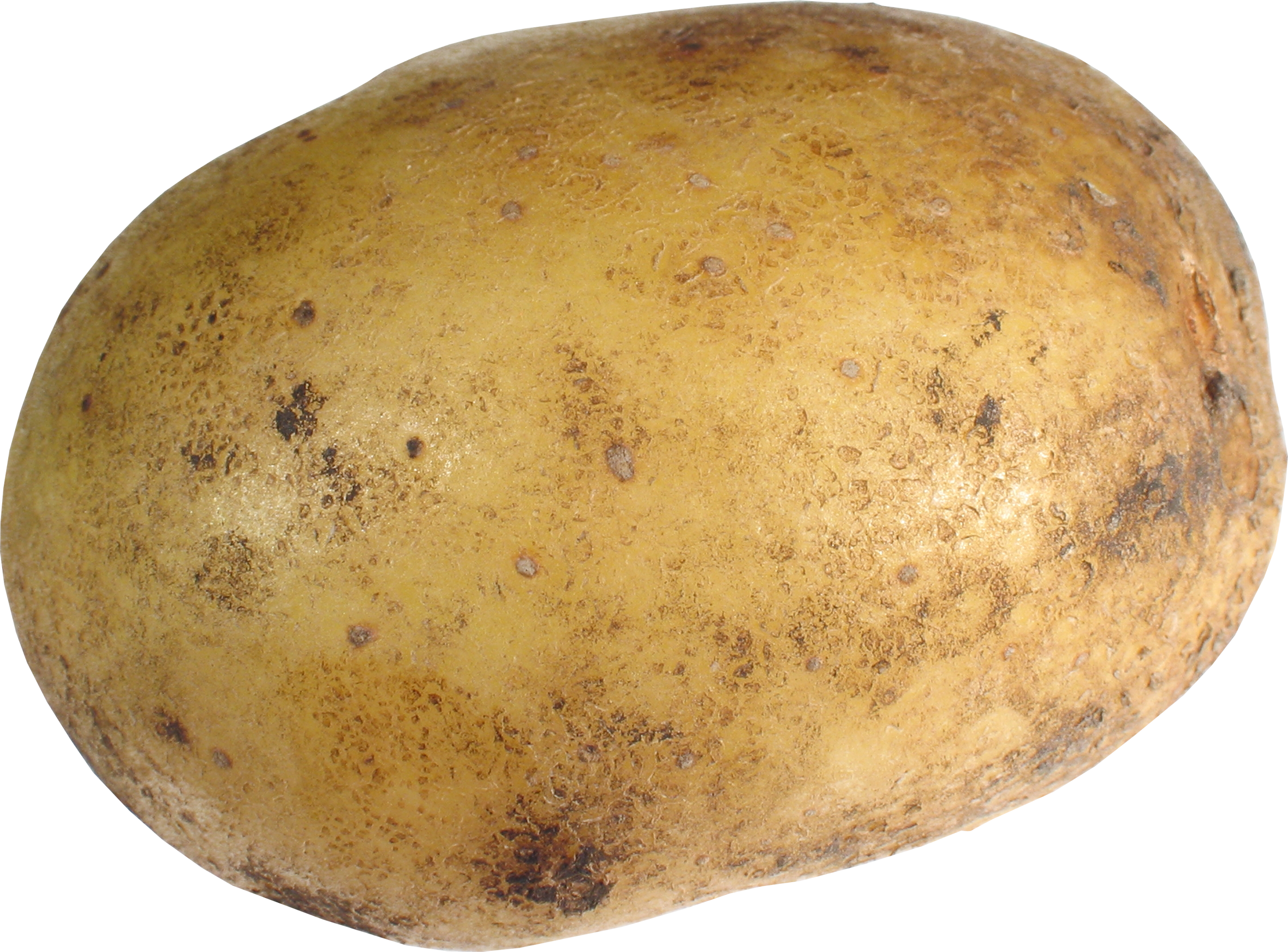
Download this image of a potato and drag it into your composition. Add a subtle outer glow, and use Hue/Saturation to color it to your liking. Don’t forget to add a shadow!
The Final Product
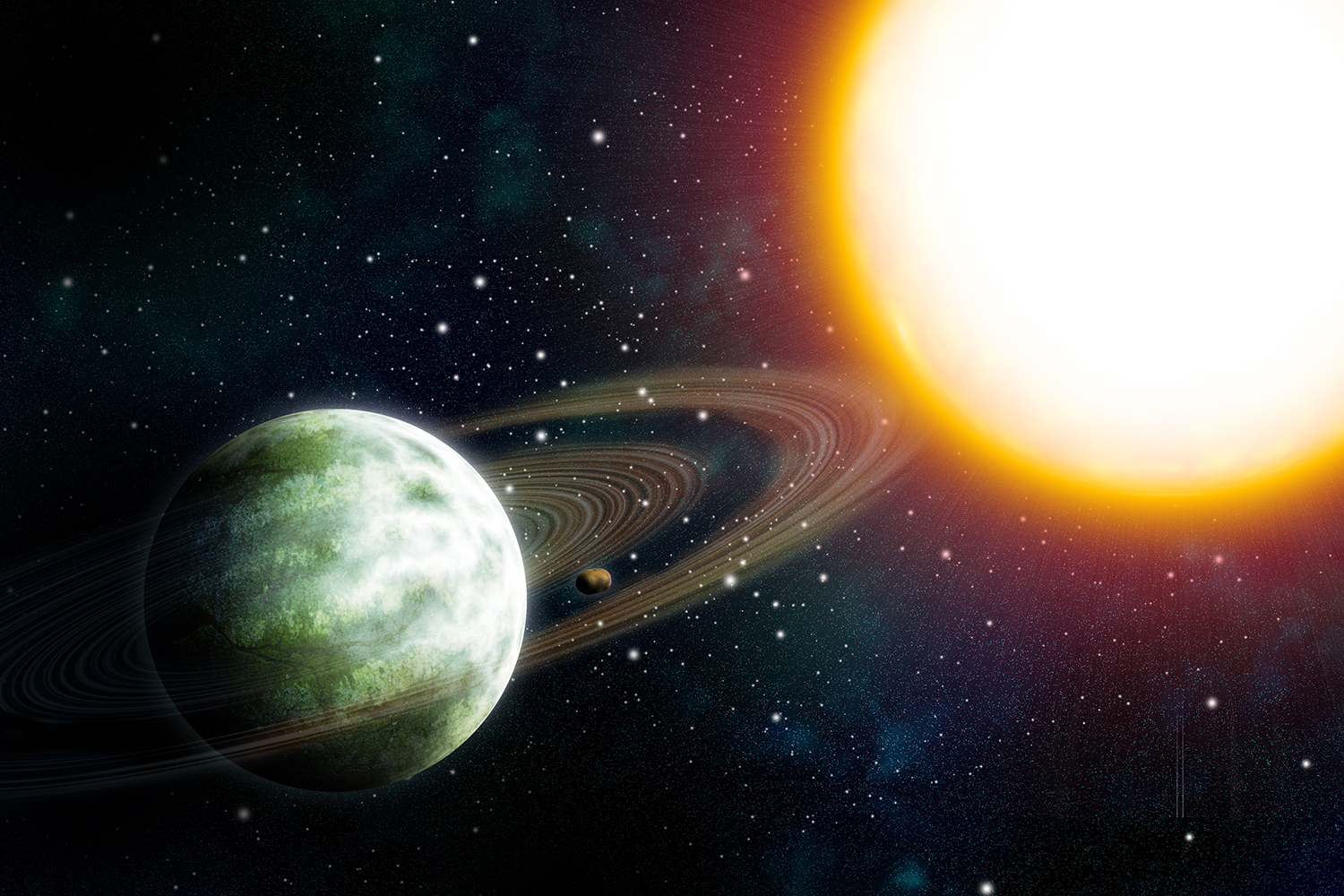
The Final and Most Important Step: Name your planet!
Then email a jpeg to me! I would love to see what you made!